Does your watch keep accurate time? Gain confidence and trust by tracking it daily.
ATime is a progressive web application, and can therefore be installed on your smartphone from your web browser, and then used almost like a normal mobile app. Example installation instructions can be found here, here, or specifically for Brave.
The below screenshots were taken from an iPhone Max.
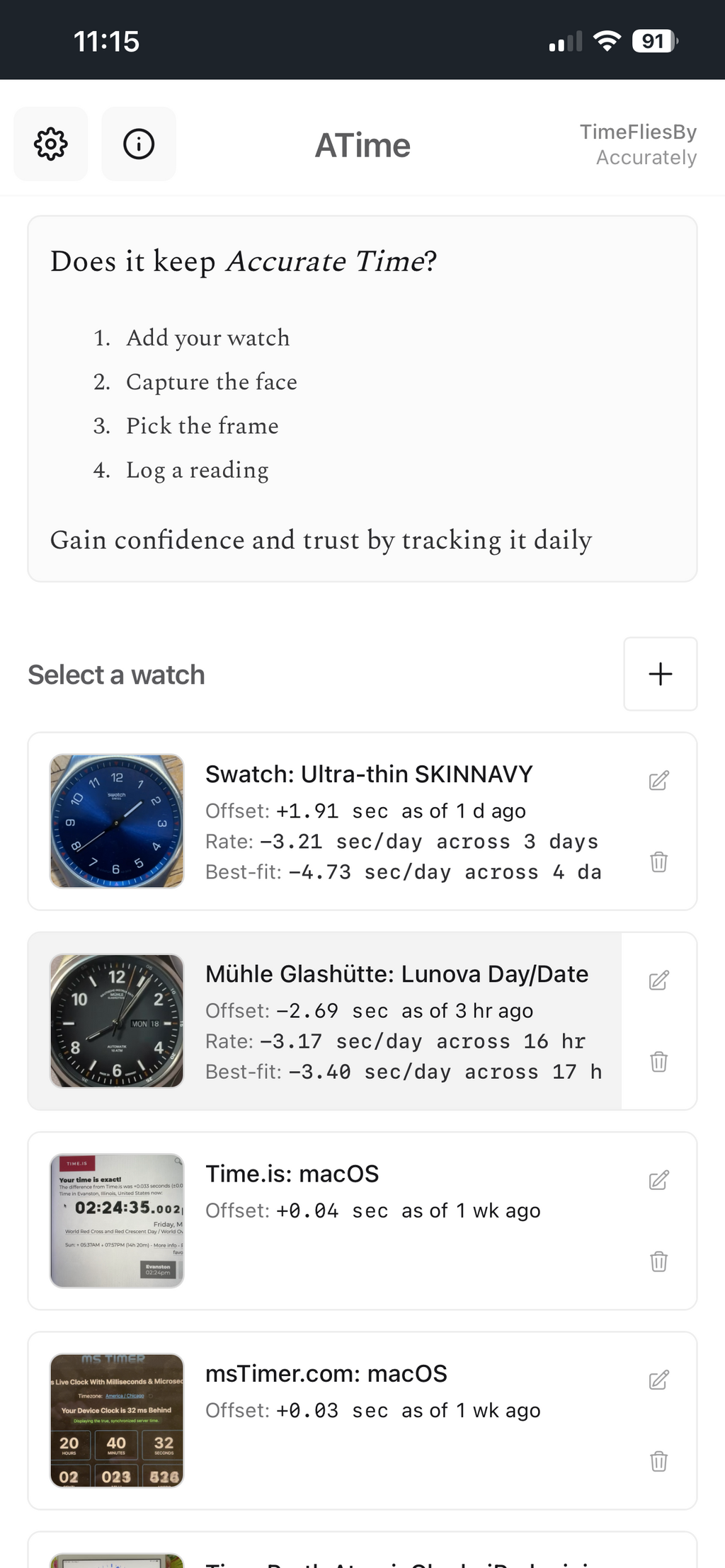
Add, select, edit and delete a watch.
You can also access the preferences pages (cog wheel in the upper left), and like for most pages, toggle the informational details ("i" in the upper left).
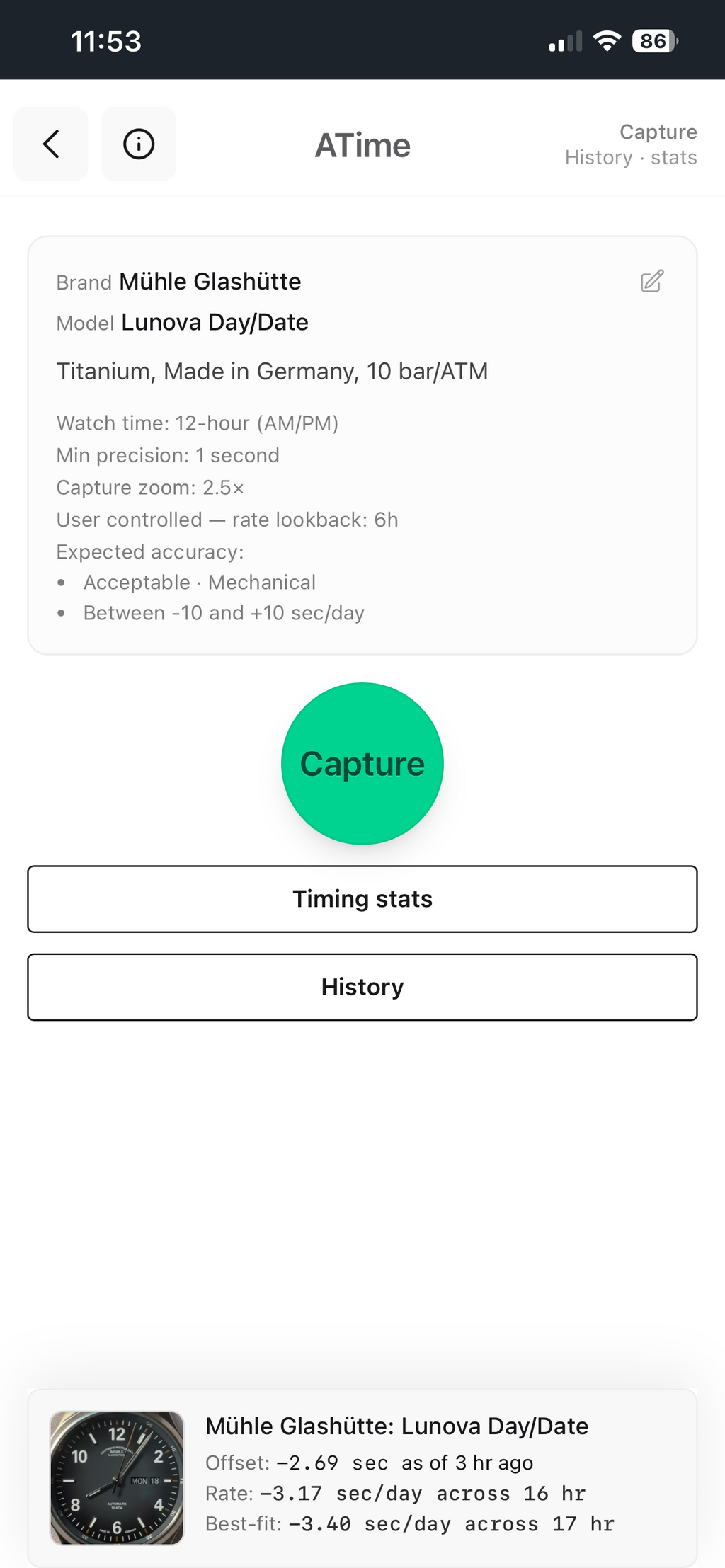
Click the Capture to track the accuracy of this watch, or review the Timing Stats or History of previous recordings.
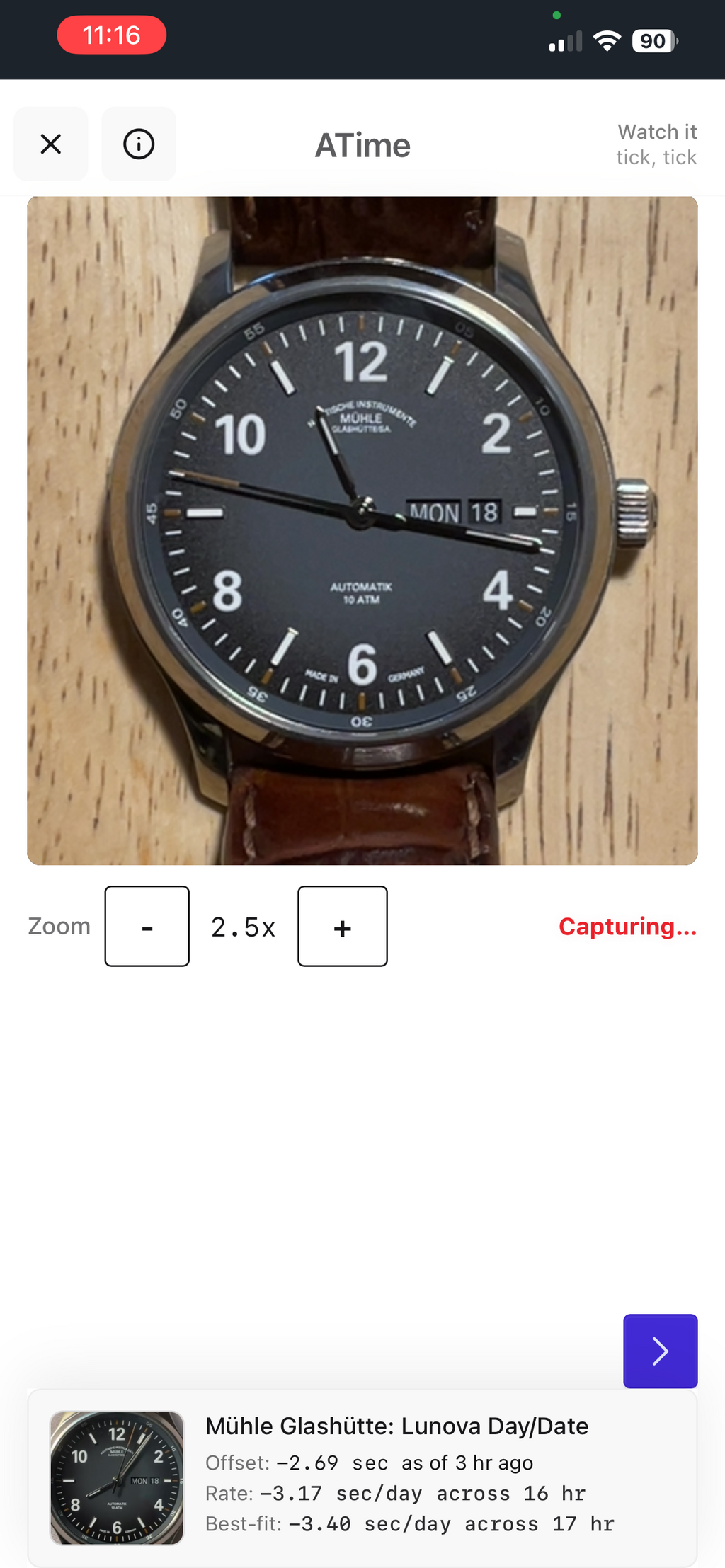
Record the face of your watch until one of the hands crosses a marker, e.g. the second hand crossing a minute marker.
For best results, move the watch as close as possible to the camera without it being blury, and try to hold still.
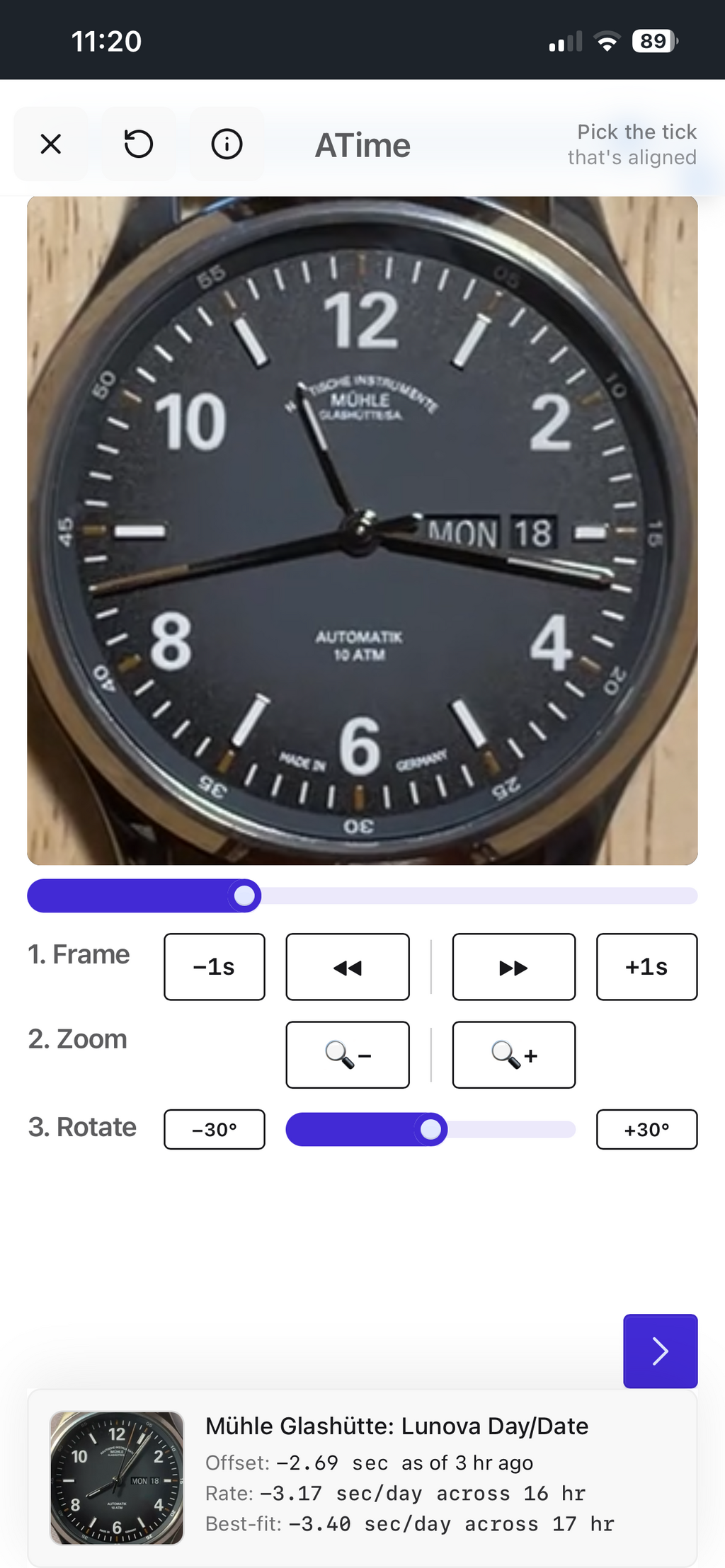
Rewind the video and then navigate forward and pick the first frame where the hand reaches a marker, in this case, where the second hand reaches 43.
Pan the video around with your finger to center the watch, and zoom in and rotate to allow for best legibility.
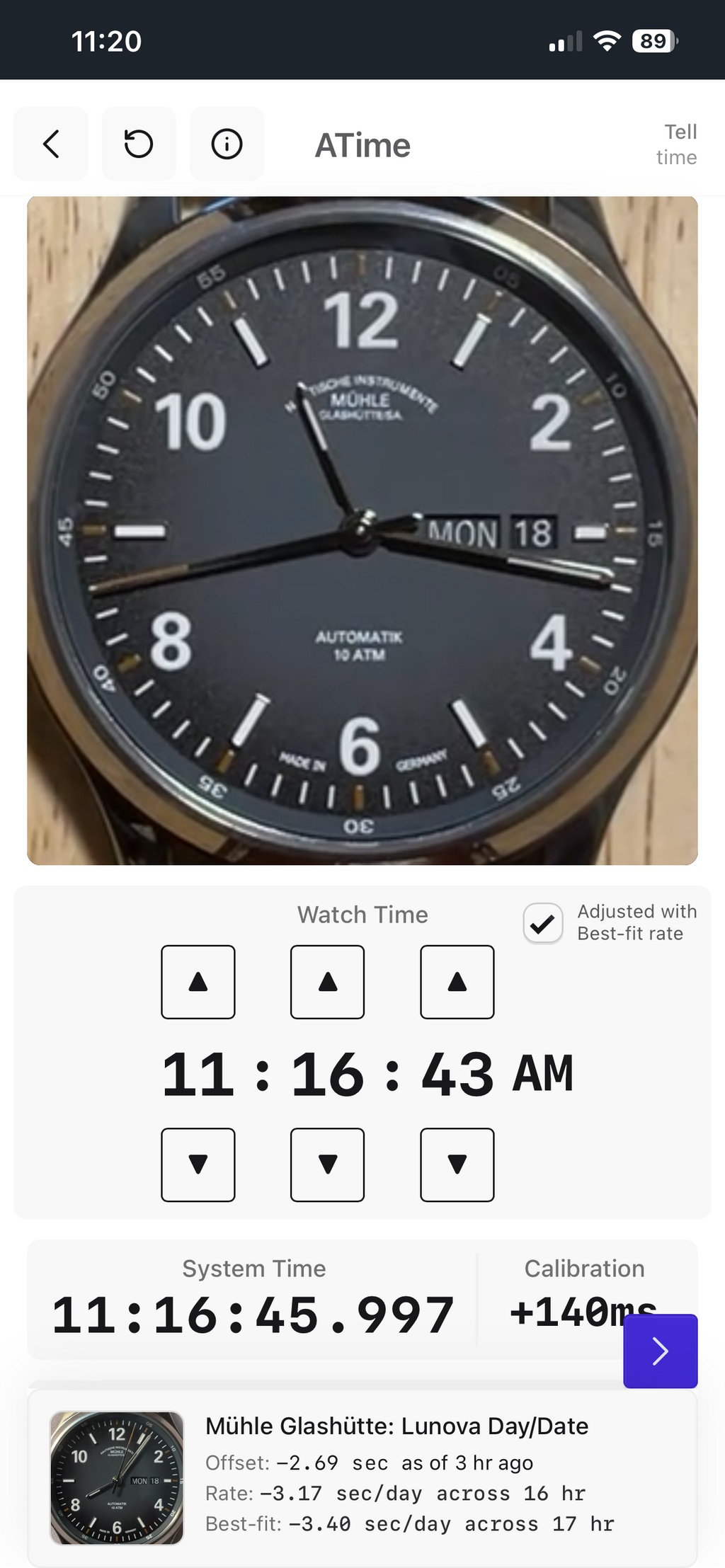
Read the time shown in the picture of your recorded watch and adjust the "Watch Time" numbers accordingly to match it exactly.
Once you have made a couple of recordings over several days, the app will attempt to guess the Watch Time by pre-adjusting it based on the Best-fit Rate.
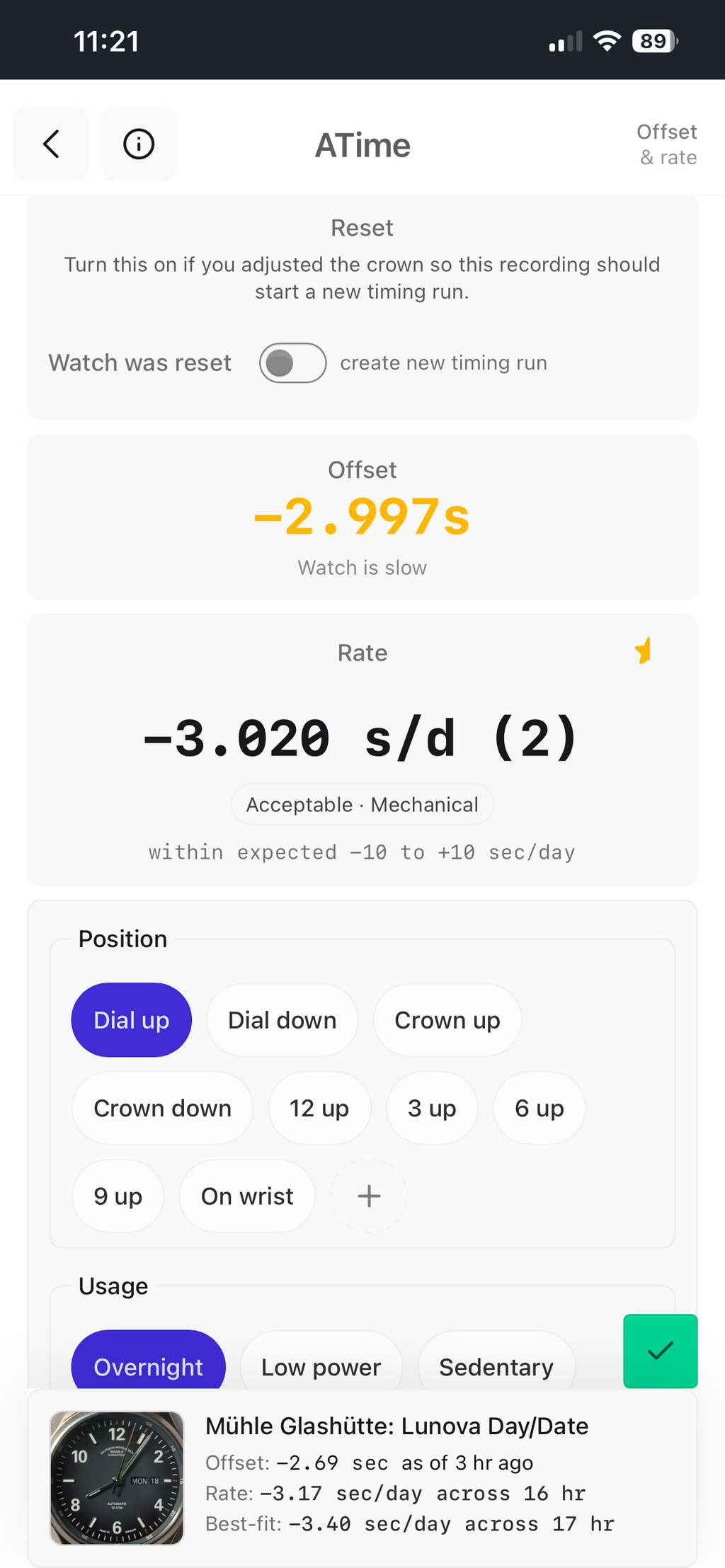
Review the total offset of your watch, and the rate per day.
You can also tag the recording with the position and usage of the watch, or some short additional comment.
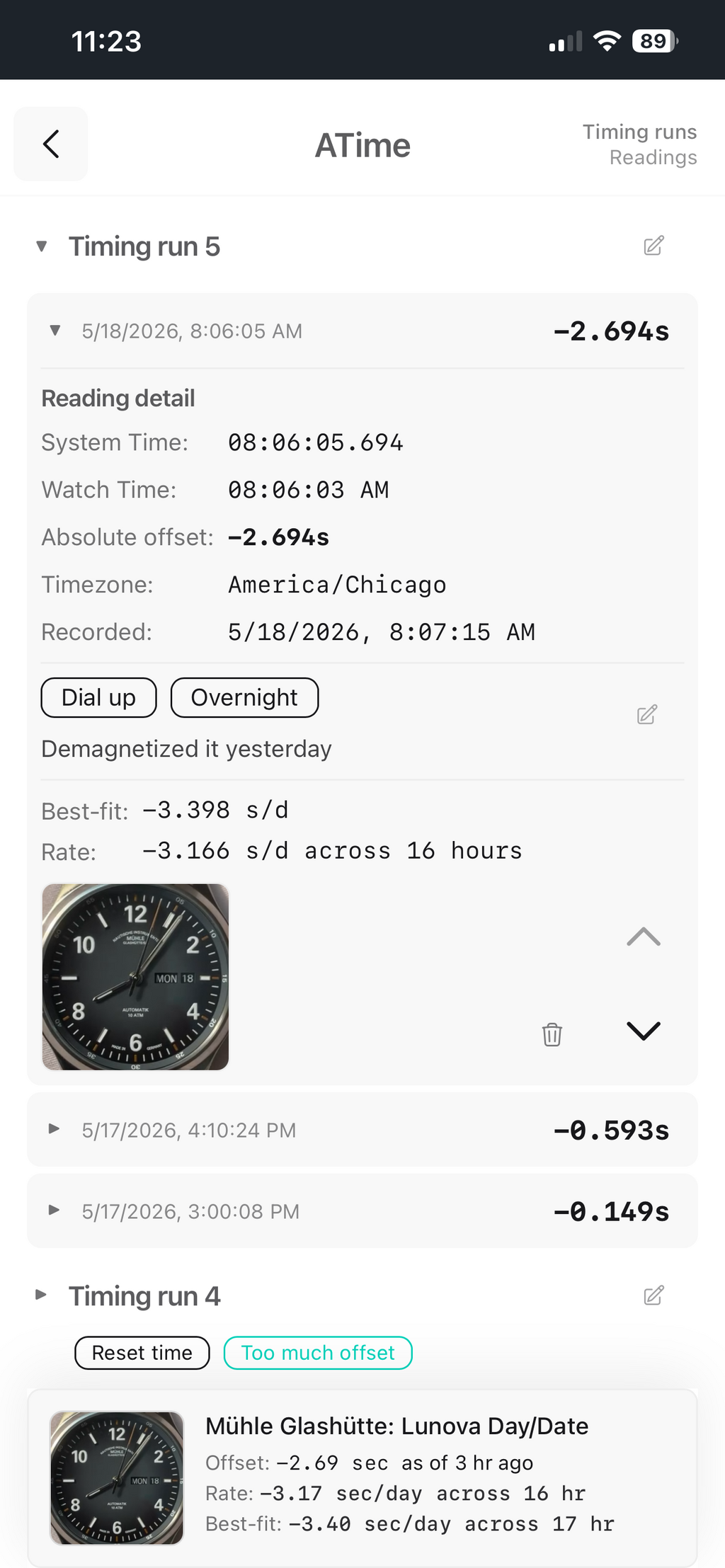
You can access all the captured recordings them from the Watch Home page and review them for their detail and accuracy, edit or delete them, or zoom into the picture.
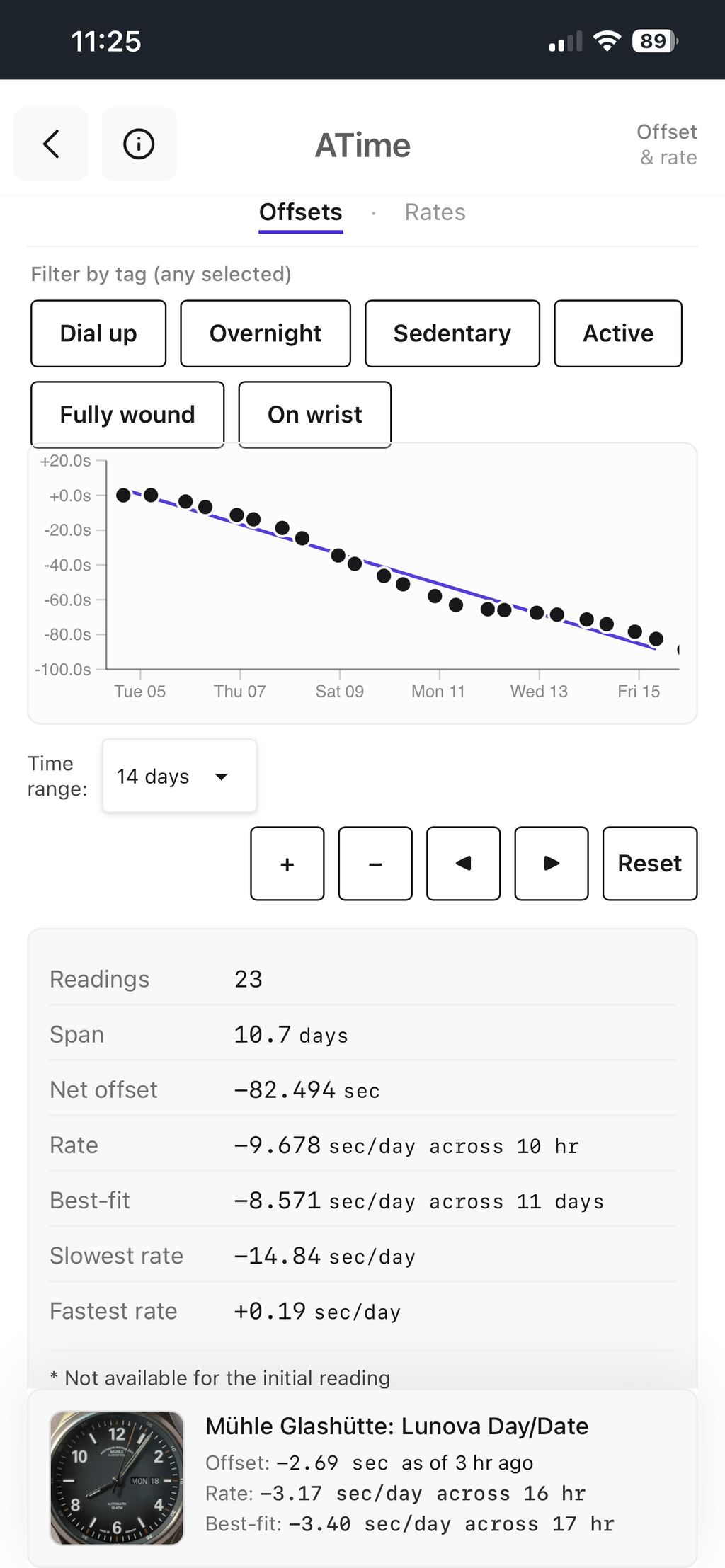
The Timing Stats from the Watch Home allows you to see the offset all of the recorded log entries on a graph.
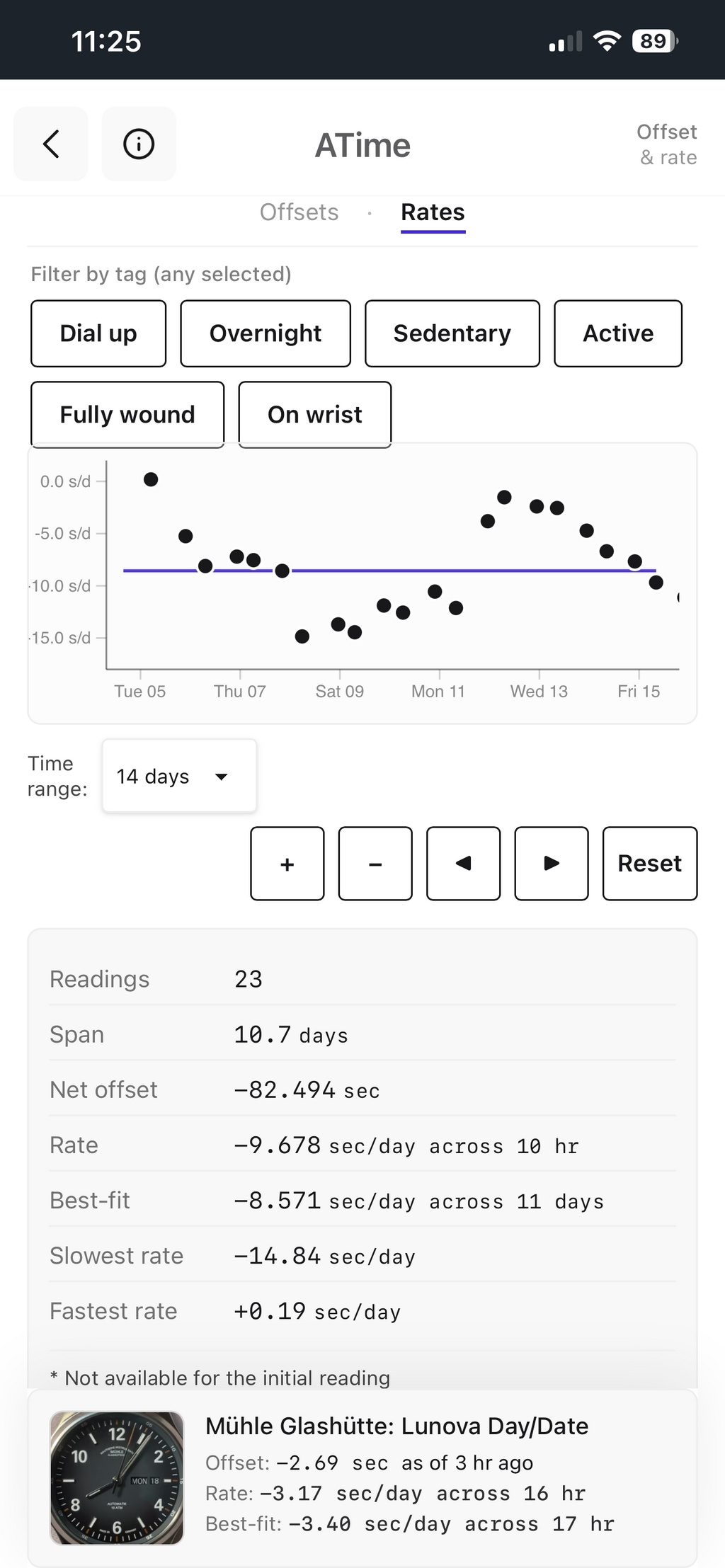
The top of the Timing Stats page also allows you to switch from the Offsets to the Rates view.